
Continue a theme in another AI tool
A store's custom theme belongs to the store, so any AI tool the store connects can read its code and keep working on it, with the merchant's approval for every rebuild and publish. Run on Tanqory's test environment.
A custom theme that an AI built in Advanced mode (see Building for your own store instead) belongs to the store, not to the AI tool that made it. Any tool the store has connected can pick it up:
| The connection holds | It can |
|---|---|
read_themes | list the store's custom themes (theme_get), read a theme's code (theme_code_files), follow a build (theme_build_status), take preview screenshots (theme_preview_screenshot) |
write_themes | stage the changed files (theme_code_push, the same handle), rebuild the theme with them (theme_code_commit) and publish it (theme_publish) |
Every rebuild and every publish still shows the merchant a card to approve first, whichever tool asks. A connection to another store sees none of these themes.
- AI tool A → Tanqory theme_code_push riverside-stay, in parts; then theme_code_commit
- Merchant → AI tool A Approves the build
- Tanqory Builds and checks it in the sandbox; installs it as the store's custom draft
- AI tool B → Tanqory theme_code_files riverside-stay
- Tanqory → AI tool B Every file you may change, and which tool made each build
- AI tool B → Tanqory theme_code_push riverside-stay with the changed files only; then theme_code_commit
- Merchant → AI tool B Approves Rebuild your custom theme
- Tanqory Builds again; the same draft is updated
What we ran
On 2026-11-15, on the development store from the Room Booking example, with two separate connections. Both were Claude Code, each signed in on its own, which is exactly what the server sees when the second tool is ChatGPT, Claude or Cursor: a different connection with its own approved access to the same store.
Tool A started the theme:
Use the tanqory tools. I want a new look for my store Riverside Hotel Demo that is not Nova: Advanced mode.

Start with theme_scaffold. Then design a custom theme with the handle "riverside-stay" for a small riverside hotel: a calm home page with a full-width welcome, a "Our rooms" grid of the store's products, a short "Getting here" section, cream and deep green colours, a serif for headings, no blue. Keep the scaffold's rules. Stage the files with theme_code_push, about 32 KB per call, then call theme_code_commit. I am the merchant and I approve this build: when the commit shows the confirmation card, call it again with only the confirmation token. Then follow it with theme_build_status until it is ready or fails; if it fails, stage only the files you fix and commit again (I approve rebuilds of riverside-stay). Do not publish. When it is ready, call theme_preview_screenshot for the home page and tell me what it shows.
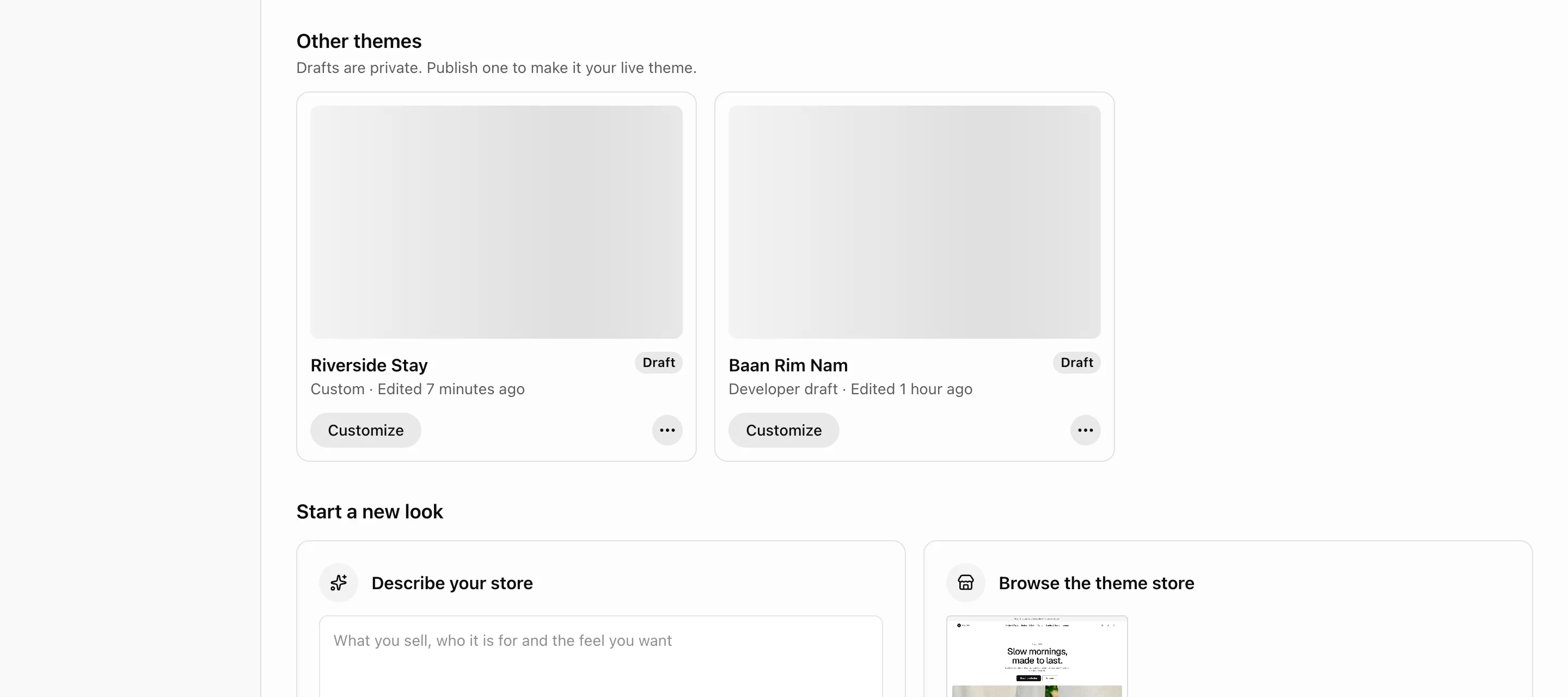
It built on the first try, the standard check passed, and the theme was installed as a draft, in about twelve minutes. The Themes page lists it under Other themes.
Tool B carried on:
Use the tanqory tools. My store has a custom theme "riverside-stay" that I started in another AI tool. Read its code with theme_code_files, and tell me which connection made each build in its history.

Then change only the home page's welcome section: add the line "Rooms by the water, ten minutes from the old town" under the heading, and make the welcome's buttons terracotta. Keep every other file as it is. Stage only the files you change with theme_code_push under the same handle, then call theme_code_commit. I am the merchant and I approve this rebuild: when the commit shows the confirmation card, call it again with only the confirmation token. Follow it with theme_build_status until it is ready, then call theme_preview_screenshot for the home page. Do not publish.
It read 25 files and the build history (one build, made by the other connection), changed only the welcome section, and pushed the theme back. (This run was made on 2026-11-15, when a push had to send the whole theme; since 2026-11-17 a change stages only the files that changed, and the commit keeps every other file of the latest build.) The rebuild passed, and its preview screenshots showed the new line and the terracotta button.
Do it with your own tools
- Connect the second tool to the same store with the theme access approved (Connect your AI tool).
- Ask it to list the store's themes and read the custom one: "Use the tanqory tools. Read the code of my custom theme
<handle>with theme_code_files." - Describe the change. Ask it to keep every other file as it is and to push the whole theme back under the same handle.
- Approve Rebuild your custom theme when your tool shows it. The tool follows the build and shows you preview screenshots.
- Publish only when you are happy: the theme must pass every check first, and you approve the publish too.