
Build an app with AI: Room Booking
A hotel booking app built with Claude Code from a few prompts, run on Appwrite, installed on a development store and submitted for review, with its booking box as an app block. Run on Tanqory's test environment.
This page builds Room Booking, an app a small hotel installs from its store dashboard. Every step below was run on Tanqory's test environment on 2026-11-15 with Claude Code, and the prompts are the exact ones that produced the working app. Five prompts and under half an hour of AI work made it; most of your time goes into setting it up and trying it.
What the hotel gets:
- Room types and counts. Each room type is a product of the store (product type
Room). The hotel says how many rooms of each type it has, and the app refuses a booking when a type is full on any night. - One bookings list inside the store dashboard: bookings added by hand, bookings from orders, and requests from the website, which the hotel confirms or declines.
- A booking box on each room's page, an app block the hotel places under the room's details in the theme editor: dates in, free rooms out, then a booking request.
- A plan: Standard, USD 19 every 30 days with a 14-day free trial.
- Hotel (store dashboard) → Tanqory Installs the app and approves its access and plan
- Tanqory → Room Booking on Appwrite An access token for that store
- Hotel (store dashboard) → Room Booking on Appwrite Opens the app inside the dashboard, with a session token
- Room Booking on Appwrite → Tanqory Reads the room products through the Admin API
- Tanqory → Room Booking on Appwrite orders/create when an order includes a room
- Guest (hotel website) → Tanqory Checks dates in the booking box on the store's own address
- Tanqory → Room Booking on Appwrite Forwards it through the app proxy, signed
Before you start
- A partner organization and a development store with sample data: Create a partner account and Create a development store.
- Claude Code (or another coding AI) on your computer, and Node.js 22.
- An Appwrite project for the app's server and data. Appwrite is open source: use Appwrite Cloud or your own Appwrite. Tanqory's own app teams get a project, and an address
dev-<app>.tanqory.app, from Tanqory. Install the Appwrite command line withnpm install -g appwrite-cli. - An Appwrite API key for the setup, with read and write for databases, tables, columns and indexes.
Any server with an https address works the same way; only step 4 changes.
1. Create the app
- In the partner dashboard, open Apps and select Create app.
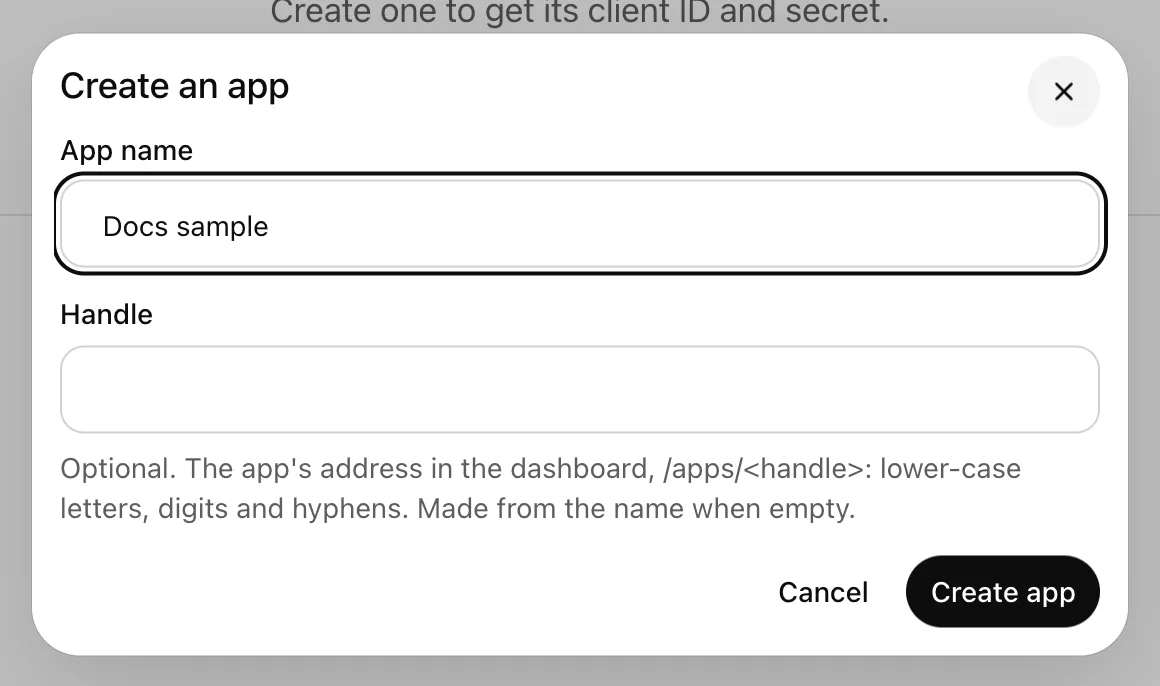
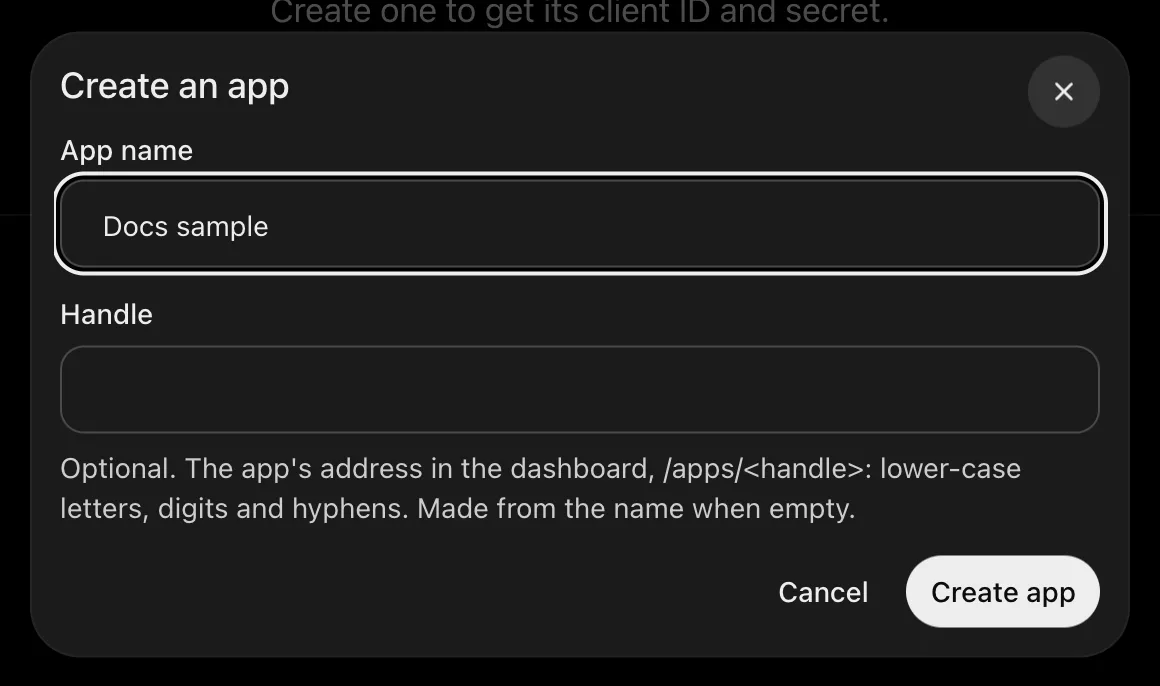
- Enter App name
Room Bookingand a Handle such asriverside-room-booking, then select Create app. - Save your client secret shows the client ID and the client secret once. Keep the secret somewhere safe, such as a password manager, and select I saved the secret.
2. Ask the AI to build it
Make an empty folder, open Claude Code in it and send the first prompt. It reads these docs, then writes the app.
Build me a Tanqory app called "Room Booking" for small hotels and guesthouses.

What it does:
- A hotel that sells on Tanqory installs it from its store dashboard. It opens inside the dashboard.
- Each room type is one of the store's products (read them with the Admin API). The hotel sets how many rooms of each type it has.
- The hotel sees a list of bookings (guest name, guest email, room type, check-in, check-out, status) and can add a booking by hand. The app refuses a booking when that room type is already full on any of the nights.
- When an order includes a room product, the app turns it into a booking. The dates are the line item's custom attributes "Check-in" and "Check-out" (YYYY-MM-DD). Use the orders/create webhook.

How to build it:
- One Appwrite Function, Node.js 22, no npm dependencies, ES modules, in ./function. Keep data in Appwrite TablesDB through its REST API with the function's API key. Every row carries the store id, and the app only reads rows of the store named in a verified session token or a verified webhook.
- Follow Tanqory's developer docs exactly. Read these pages before you write code:
  https://docs.tanqory.com/apps/
  https://docs.tanqory.com/apps/oauth/
  https://docs.tanqory.com/apps/embedded/
  https://docs.tanqory.com/apps/webhooks/
  https://docs.tanqory.com/apps/billing/
  https://docs.tanqory.com/get-started/first-api-call/
- Routes: /auth/start and /auth/callback (install with OAuth: state, PKCE, check the callback hmac), / (the embedded page: App Bridge, check the session token), /api/... (JSON for the page, a session token on every call), /webhooks (check the HMAC of the raw body), /webhooks/compliance (the three privacy topics; shop/redact deletes that store's rows), /privacy (a short privacy policy page), /healthz.
- Read secrets (client secret, Appwrite API key) only from environment variables. Never log tokens or guest details.
- Write appwrite.json for the Appwrite CLI (function id "app", runtime node-22, entrypoint src/main.js, execute "any"), and a script setup.mjs that creates the database and tables through the Appwrite REST API.
- Write README.md listing every environment variable.
Do not deploy anything. I will run it.
It answered with the files below in about six minutes, and a list of what it had to guess, which is worth reading: those are the places to test first.
| File | What it does |
|---|---|
function/src/main.js | The routes: install, the dashboard page, the page's API, webhooks, privacy page |
function/src/lib/tanqory.js | Checks the install callback, session tokens and webhook signatures; calls the Admin API |
function/src/lib/bookings.js | Room counts and bookings; one row per room per night, so two bookings cannot take the same room |
function/src/lib/webhooks.js | orders/create into bookings; the privacy topics |
function/src/lib/pages.js | The page inside the dashboard, with App Bridge |
setup.mjs, appwrite.json, README.md | The tables, the function's settings, every setting it needs |
3. Add the plan and the booking box
Send the second prompt in the same conversation (claude --continue from the terminal).
Good. Now add these to the Room Booking app in this folder. Keep everything that already works.

1. Appwrite key: do not use an APPWRITE_API_KEY variable. Use the key Appwrite gives each execution in the x-appwrite-key request header, and list the scopes the function needs in appwrite.json ("scopes": rows.read, rows.write). setup.mjs still takes a key from the environment, because it runs on my computer.

2. Billing: the app has one plan, "Standard", USD 19 every 30 days with a 14-day free trial. Read https://docs.tanqory.com/apps/billing/ again. When the hotel opens the app and the store has no active subscription, show a short "Choose your plan" screen with a "Start free trial" button that creates the subscription and sends the merchant to the approval page at the top level (not inside the frame). After approval the merchant comes back to the app. On a development store use a test charge.

3. A booking form on the hotel's own website, as a Tanqory app block (read https://docs.tanqory.com/apps/app-blocks/ and https://docs.tanqory.com/apps/extensions/ first). Write blocks/booking.js (no libraries, under 20 KB) and blocks/booking.css. The script registers the block with window.tqAppBlocks.register('booking-box', { mount(root, settings) {...}, unmount(root) {...} }) and renders only inside root: never look up or change the theme's elements or forms. It takes the room's handle from the page address (/products/<handle>) and shows a "Check availability" box: check-in date, check-out date, a "Check availability" button. It calls the app proxy on the same site at /apps/rooms/availability?handle=<handle>&from=<date>&to=<date> and shows how many rooms are free. If rooms are free, it shows name and email fields and a "Request booking" button that POSTs JSON to /apps/rooms/request. The request is saved as a booking with status "requested", which the hotel confirms or declines in the dashboard (add Confirm and Decline buttons there). Style it only in booking.css, with a class of its own on every element (no <style> elements, no style attributes); use the store's own fonts and colours (inherit), and work on a phone. The block has no settings.
   On the server, add /proxy/availability and /proxy/request. Tanqory calls them through the app proxy with the query parameters shop, logged_in_customer_id, path_prefix, timestamp and signature. signature is the hex HMAC-SHA256, keyed with the client secret, of every other query parameter written as key=value (several values of one key joined by ","), sorted, and joined with nothing between them. Check it in constant time, refuse a timestamp older than 5 minutes, and find the store from the shop parameter (the store's domain saved at install). Answer JSON, and refuse a request for dates in the past, a stay longer than 30 nights, or a full room type.

4. README: add the app proxy settings (prefix "apps", subpath "rooms", proxy URL APP_URL/proxy) and the app block (name "Room booking box", handle booking-box, script blocks/booking.js, stylesheet blocks/booking.css, uploaded in the partner dashboard's Extensions) to the partner dashboard steps, and the billing plan to the listing.

Do not deploy. Check every file with node --check.
4. Put it on Appwrite
From the app's folder:
# the tables (once)
APPWRITE_ENDPOINT=<your Appwrite endpoint>/v1 APPWRITE_PROJECT_ID=<project id> APPWRITE_API_KEY=<setup key> node setup.mjs

# the function
appwrite client --endpoint <your Appwrite endpoint>/v1 --project-id <project id> --key <setup key>
appwrite push function --function-id app --force --config-file appwrite.json
setup.mjs ends with Done., and the push with Successfully deployed 1 function. Then, in the Appwrite console:
Functions, app, Variables: add each one, and mark the secret as secret.
Variable Value TANQORY_CLIENT_IDthe client ID from step 1 TANQORY_CLIENT_SECRETthe client secret from step 1 (secret) APP_URLthe app's address, for example https://dev-room-booking.tanqory.appAPP_HANDLEriverside-room-bookingAPP_SCOPESread_products,read_orders,write_app_proxyPRIVACY_CONTACTthe email address merchants write to about their data Functions, app, Domains: add the app's address.
Push the function again so it starts with the variables.
You'll know it worked when https://<app address>/healthz answers ok.
5. Tell Tanqory where the app lives
In the partner dashboard open the app, then Configuration:
| Field | Value |
|---|---|
| App URL | https://<app address>/ |
| Open inside the store admin | on |
| Redirect URLs | https://<app address>/auth/callback |
| Access scopes, Required | read_products, read_orders, write_app_proxy |
| Webhooks | topic orders/create, endpoint https://<app address>/webhooks |
app/uninstalled | https://<app address>/webhooks |
customers/data_request, customers/redact, shop/redact | https://<app address>/webhooks/compliance |
| App proxy | Use an app proxy on, prefix apps, subpath rooms, proxy URL https://<app address>/proxy |
Select Save version. Then open Extensions, select Add app block and enter: name Room booking box, handle booking-box, a description such as Dates and free rooms for this room, the script file blocks/booking.js and the stylesheet blocks/booking.css from the app's folder. Select Upload and save block. Tanqory keeps both files with the version and serves them from each store's own address; a changed file is uploaded again the same way and makes the next version. (With the tanqory-partner command line, tanqory-partner app extensions push does the same from a tanqory.extensions.json file: see App blocks.)
6. Install it on your development store
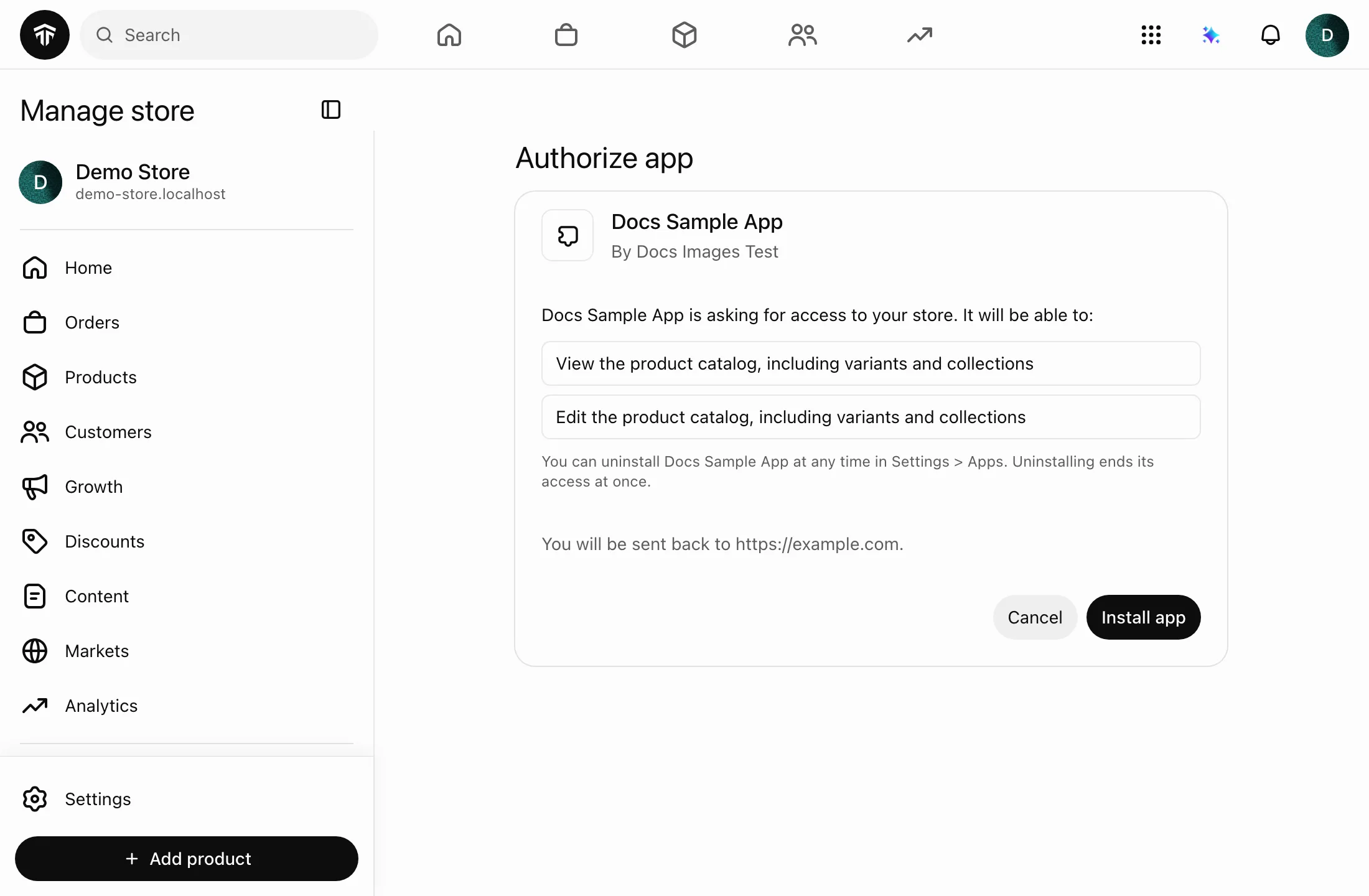
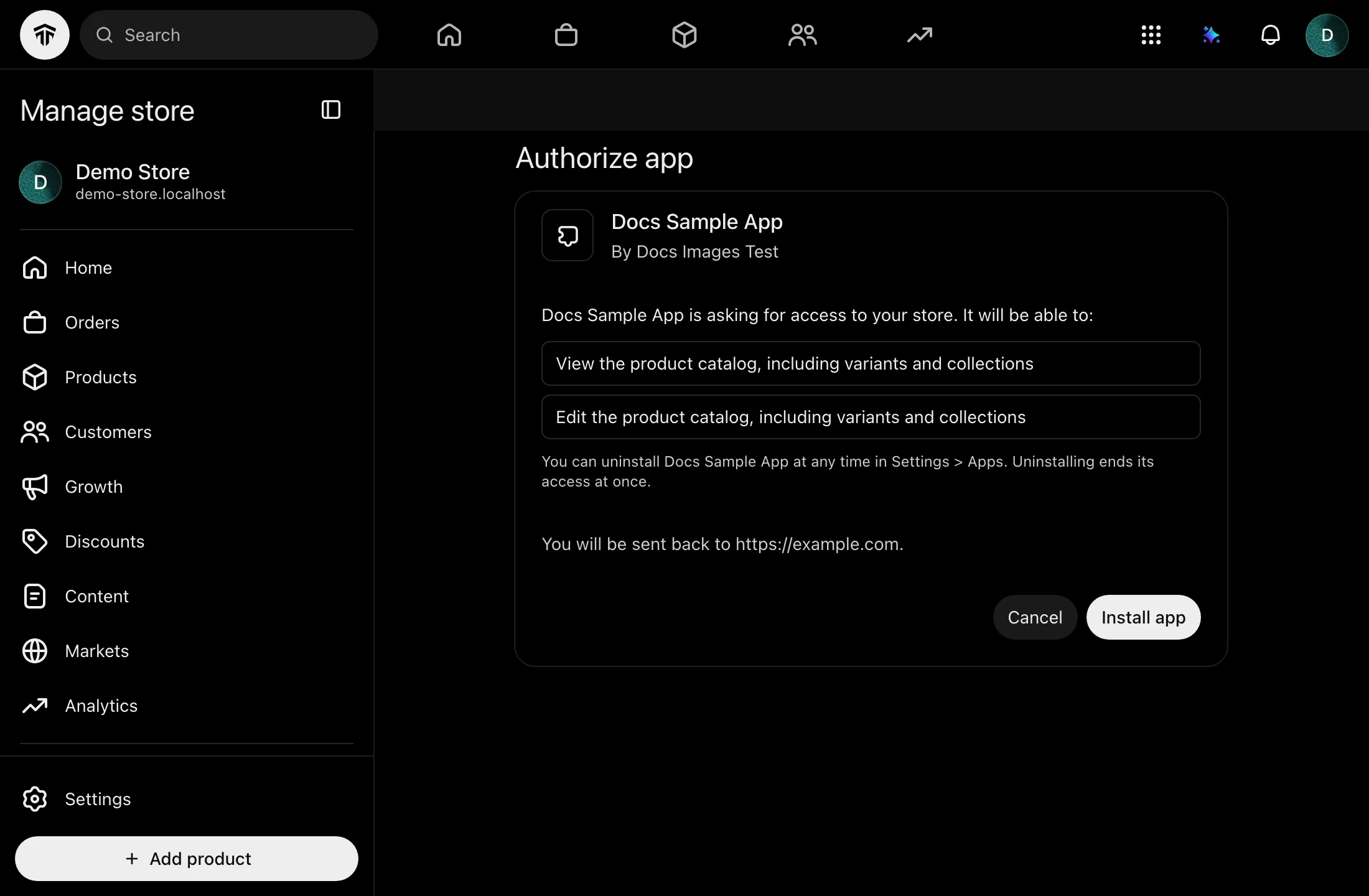
Open https://<app address>/auth/start?store_id=<development store id> (the store id is in the store dashboard's address). The dashboard shows Authorize app with what the app will be able to do; select Install app. The app's page says Room Booking is installed.
The partner dashboard installs it another way: open the app's Home and select Install next to the store. That is the install the App Store and Tanqory's reviewers use. No OAuth callback runs, and the app gets its access token by token exchange the first time it opens, so try this one too: the app must open straight into Choose your plan, not "Finish the install to continue".
7. Use it as the hotel
- Open Apps, Room Booking in the store dashboard. The app shows Choose your plan; select Start free trial.
- Approve app charge shows the plan, USD 19.00 every 30 days, a 14-day free trial and, on a development store, This is a test charge. You won't be billed. Select Approve charge. You come back to the app.
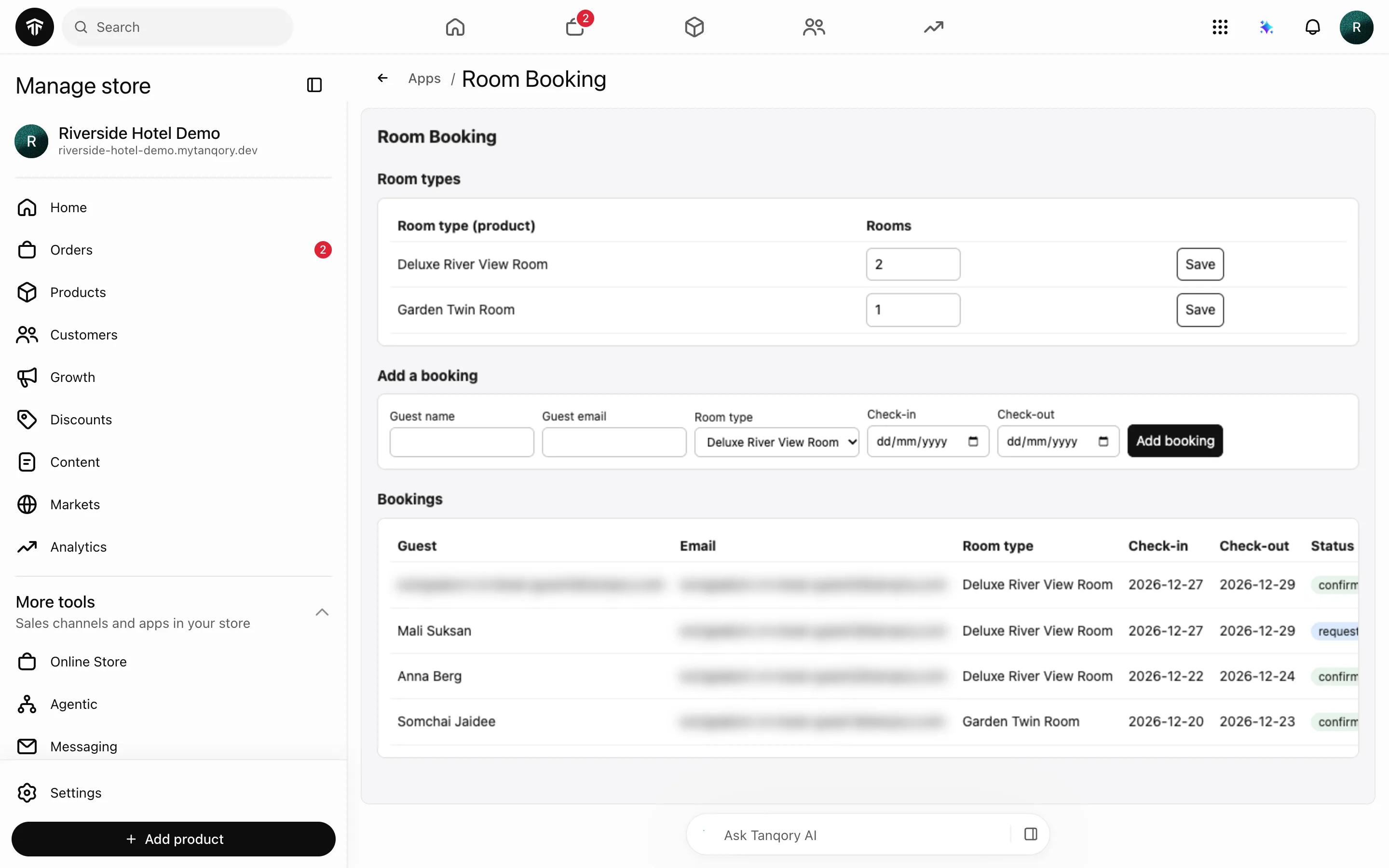
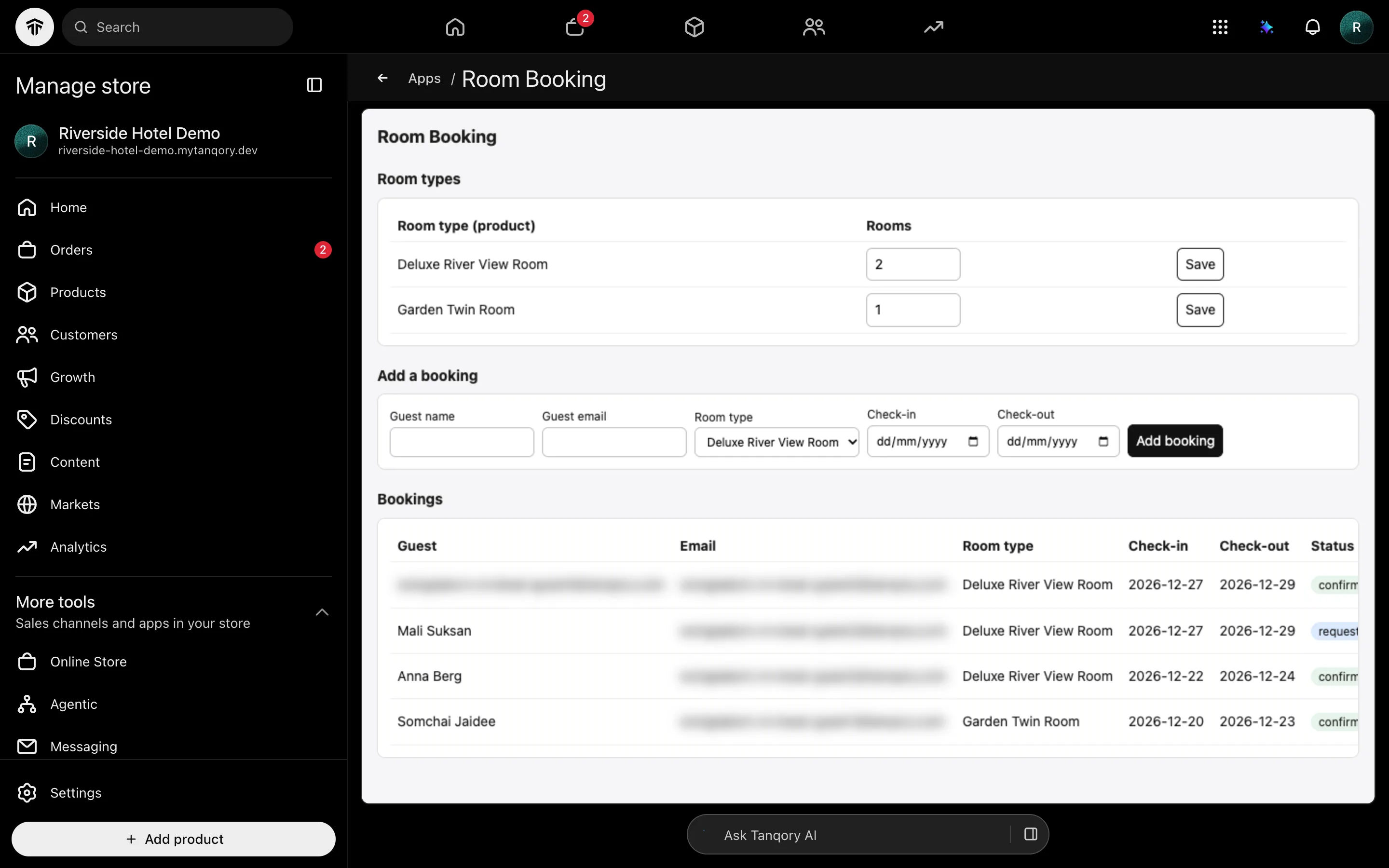
- Add two products with product type
Room(we used "Deluxe River View Room" and "Garden Twin Room"), then set Rooms to 2 and 1 and select Save. - Add a booking by hand. Add a second one for the same room type on an overlapping night: the app answers That room type is full on 2026-12-22.
8. Bookings from orders
Make an order for a room whose line has the custom attributes Check-in and Check-out in YYYY-MM-DD (we made a draft order and completed it as paid). Tanqory sends orders/create to the app within seconds, and the booking appears in the list. In the partner dashboard, Logs shows each delivery and the app's answer.
9. The booking box on the website
- In the store dashboard open Online Store, Themes, and select Customize on the live theme. Open a room's product page in the editor, select the product details section, then Add block, the Apps tab and Room booking box. Move it where the hotel wants it, for example under the price, and save. On the live theme it reaches shoppers when you save; on a draft, when the draft is published.
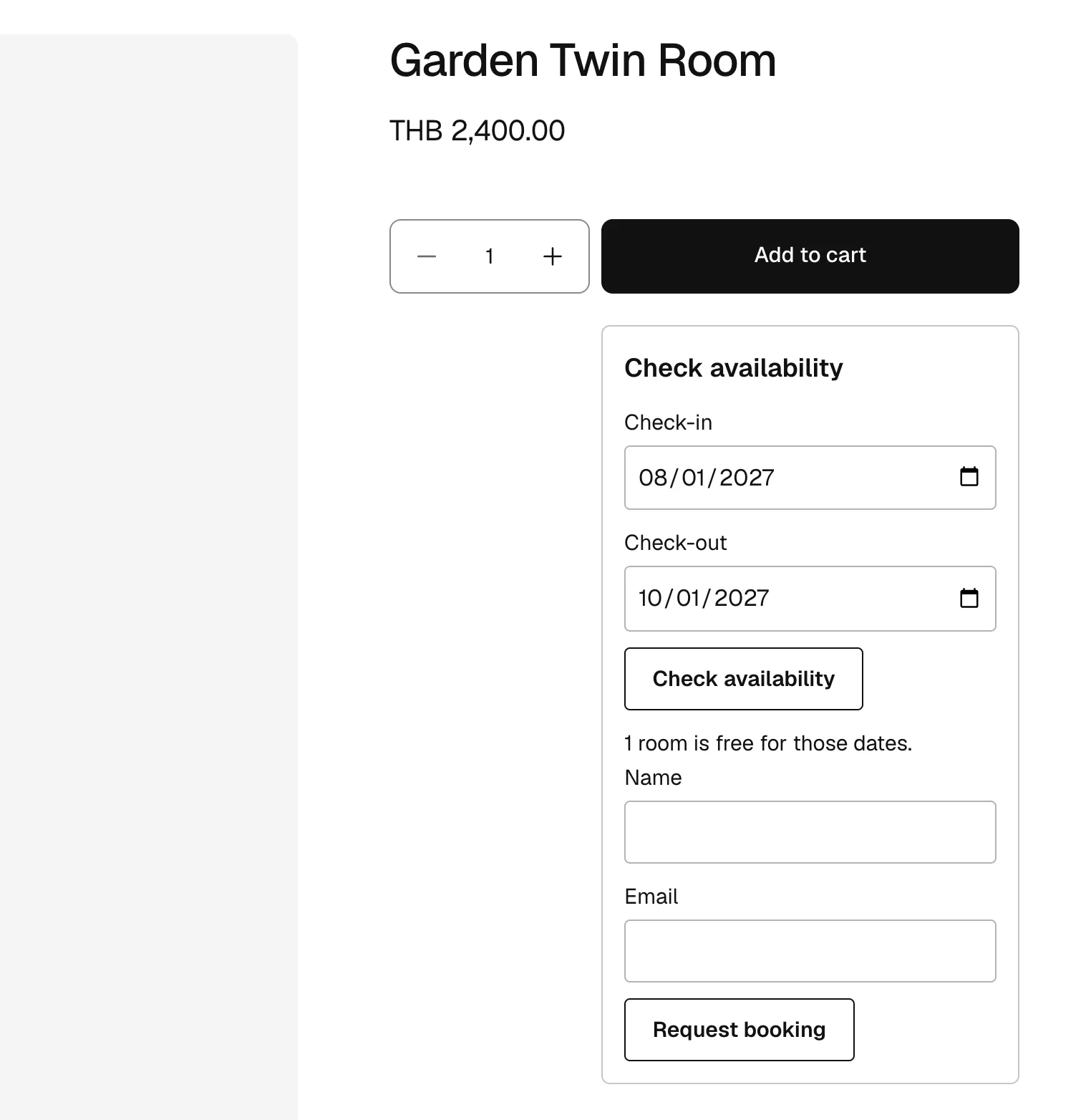
- Open a room's page on the store. The box asks for dates; Check availability answers how many rooms are free, then asks for a name and an email.
- Request booking saves a request, which shows in the app with Confirm and Decline.
- The store's address → Guest's browser The room page, with the booking block's script and stylesheet
- Guest's browser → The store's address GET /apps/rooms/availability with the dates
- The store's address → Room Booking GET /proxy/availability with shop, timestamp and signature added
- Room Booking Checks the signature with the client secret, and that the time is recent If not: refuse
- Room Booking → Guest's browser How many rooms are free, through the store's address
The box talks only to the store's own address, /apps/rooms/...: the store's security rules do not let a script on its pages call other addresses, and Tanqory forwards those paths to the app with a signature.
10. Fix what testing finds
Testing on the store found these things. Each prompt below fixed one or more; send them as they are if your AI makes the same mistakes.
I deployed it and tried it on my development store. Most of it works. Please fix these four things:

1. The booking box on the website gets the theme's "not found" page from /apps/rooms/... The app proxy only works when the store granted the write_app_proxy scope, and the install asks only for read_products,read_orders. Ask for every scope the app needs: read_products,read_orders,write_app_proxy. Read the scope list from an APP_SCOPES environment variable, with that value as the default.
2. After the merchant approves the plan, they land on the store's home page instead of the app. Send them back into the app: https://admin.tanqory.com/admin/store/<store id>/apps/<app handle>. The app handle comes from an APP_HANDLE environment variable.
3. The room list shows every product of the store (cushions, mugs...). Show only products whose product type is "Room".
4. A booking made from an order shows the guest's email as the name. Use the order customer's first and last name, or the billing address name, when the order has one.

Keep everything else. Do not deploy. Check every file with node --check.
Installing from the partner dashboard's Install button (step 6) showed "Finish the install to continue" with a Continue link that did nothing: no OAuth callback had run, so the app had no access token, and the dashboard's frame may not move the whole tab. This prompt fixed it; afterwards a fresh development store opened straight into Choose your plan:
A hotel installed Room Booking from the store dashboard (the App store), not through /auth/start. When it opens the app inside the dashboard, the app shows "Finish the install to continue" and a Continue link that does nothing. No OAuth callback ran, so the app has no access token for that store, and the frame is not allowed to move the whole tab. Fix it the way https://docs.tanqory.com/apps/embedded/#get-an-access-token-without-a-redirect says (read that page and https://docs.tanqory.com/apps/oauth/#when-the-install-starts-in-the-app-store first):

1. When the embedded page (/) or an /api/... call has a verified session token and the store has no saved access token, exchange the session token for the store's offline access token: POST https://api.tanqory.com/v1/stores/<store id>/apps/oauth/token, form-encoded, with client_id, client_secret, grant_type=urn:ietf:params:oauth:grant-type:token-exchange, subject_token=<the session token>, subject_token_type=urn:ietf:params:oauth:token-type:id_token, requested_token_type=urn:tanqory:params:oauth:token-type:offline-access-token. Save it as the store's install (store id, access token, scope, and as shop the host name of the session token's dest claim, lower case). Exchange once per store and keep the token, not on every request.
2. When the Admin API answers 401 or 403 with the saved token (the app was uninstalled and installed again), exchange again once with the current session token and retry the call once.
3. Only if the exchange itself fails, the embedded page sends the merchant to /auth/start?store=<store id> at the top level with App Bridge redirect.remote, by itself, with no link to click. Never set window.top.location: the frame is not allowed to.

Keep everything else. Never log tokens. Do not deploy. Check every file with node --check.
After each fix: push the function again, and when the scopes change, open /auth/start?store_id=... again so the store approves the new access (the button then reads Allow access).
11. Listing and Submit for review
- Open Listing. Fill in the name, a one-line tagline, the category, the description and the key features.
- Under Images, select Upload image for a square icon and for at least one screenshot without prices in it.
- Privacy policy URL
https://<app address>/privacy, a Support email, and under Pricing select Add plan: Standard, Recurring, USD 19.00, every 30 days, a 14-day trial. It must match what the app charges. - Select Save draft. The list reads Ready to submit 7 of 7.
- Select Submit for review and confirm Send the listing to review?.
Review now shows In review, with two checks waiting: the Listing check (copy, images and pricing match the app) and the Security check (data use, network access, sign-in). Two different Tanqory reviewers do them, on a store of their own, and you get an email with each verdict and its note. One failed check means you change what the note says and submit again; both passed means you select Publish listing and the app appears in the app store.
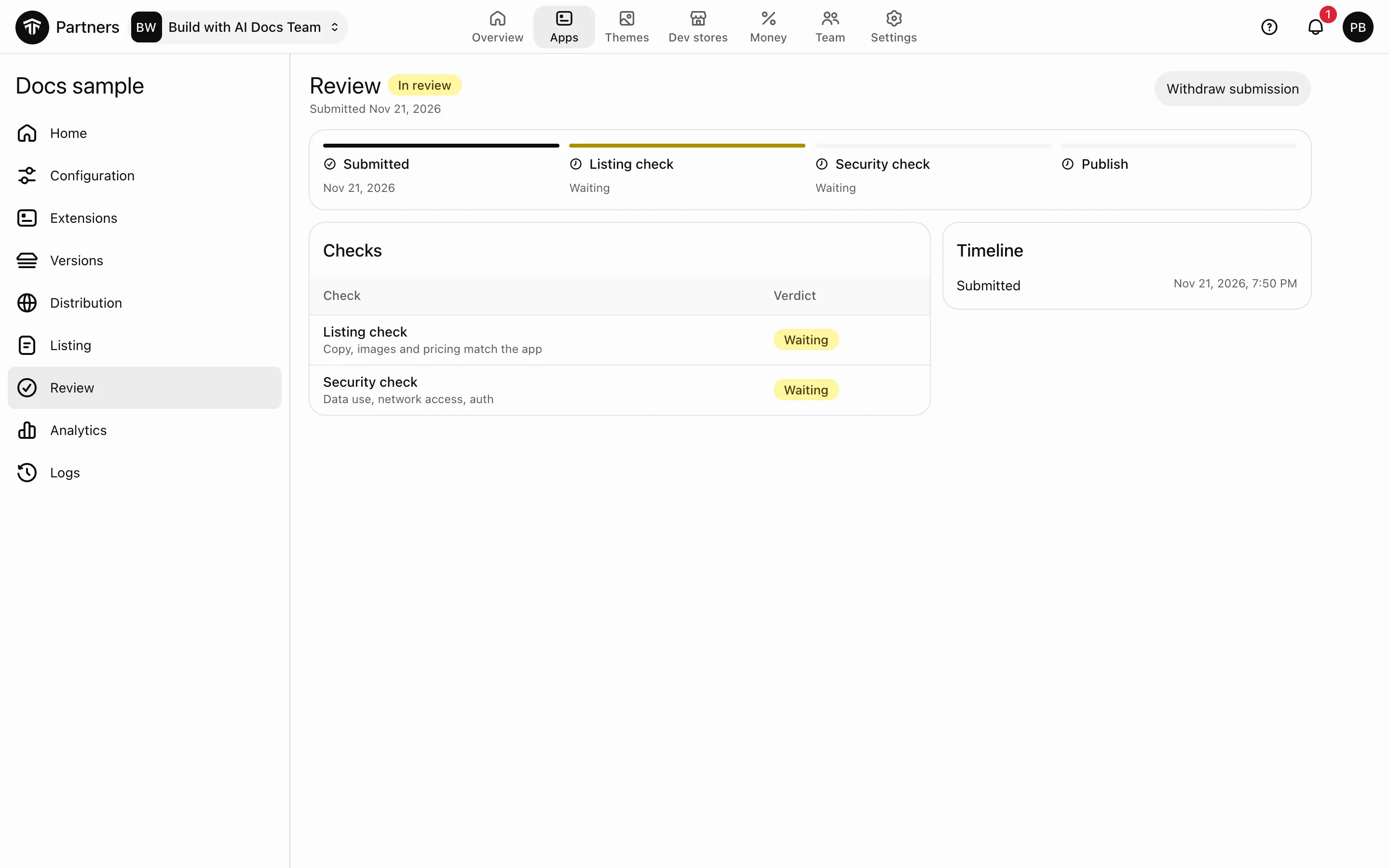
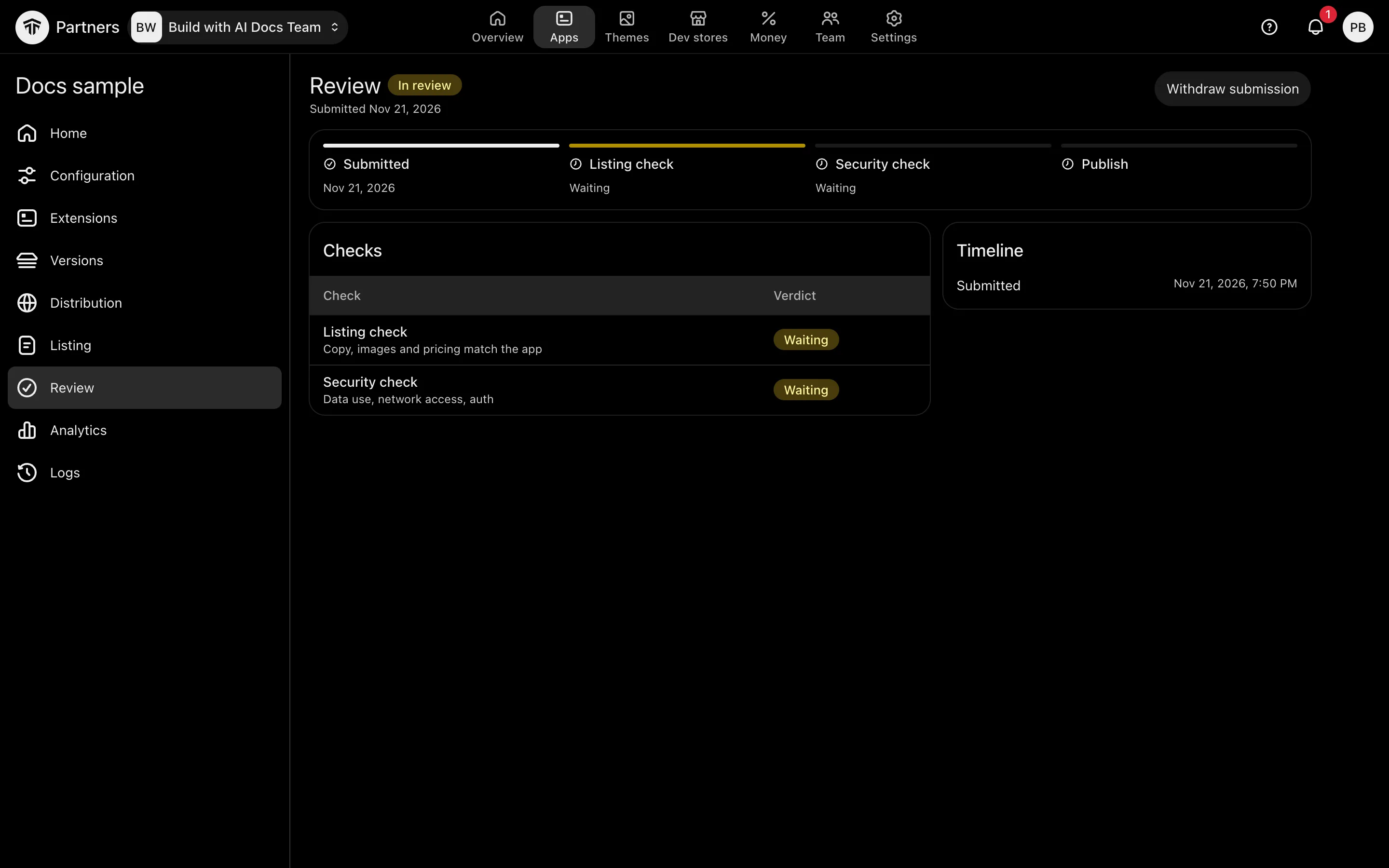
While it is in review you cannot change the listing; Withdraw submission takes it back. The guide Listing and review has the details.
What you built, and what it cost
| Prompts | 4 (5 in the 2026-11-15 run, before the booking box became an app block) |
| AI working time | under half an hour |
| Code | 14 files, about 60 KB, no packages to install |
| Tanqory pieces used | OAuth install, token exchange, App Bridge, Admin API, orders/create and the privacy webhooks, app billing, an app block, the app proxy |
| Merchant cost | the plan you set; on a development store every charge is a test |
Ideas for your own app: More business ideas. When something does not work: Troubleshooting.