
Build a theme with AI: Baan Rim Nam
A restaurant theme built with Claude Code and the tanqory-partner command line, checked 14 of 14 in Tanqory's sandbox and submitted for review. Every step here was run on Tanqory's test environment.
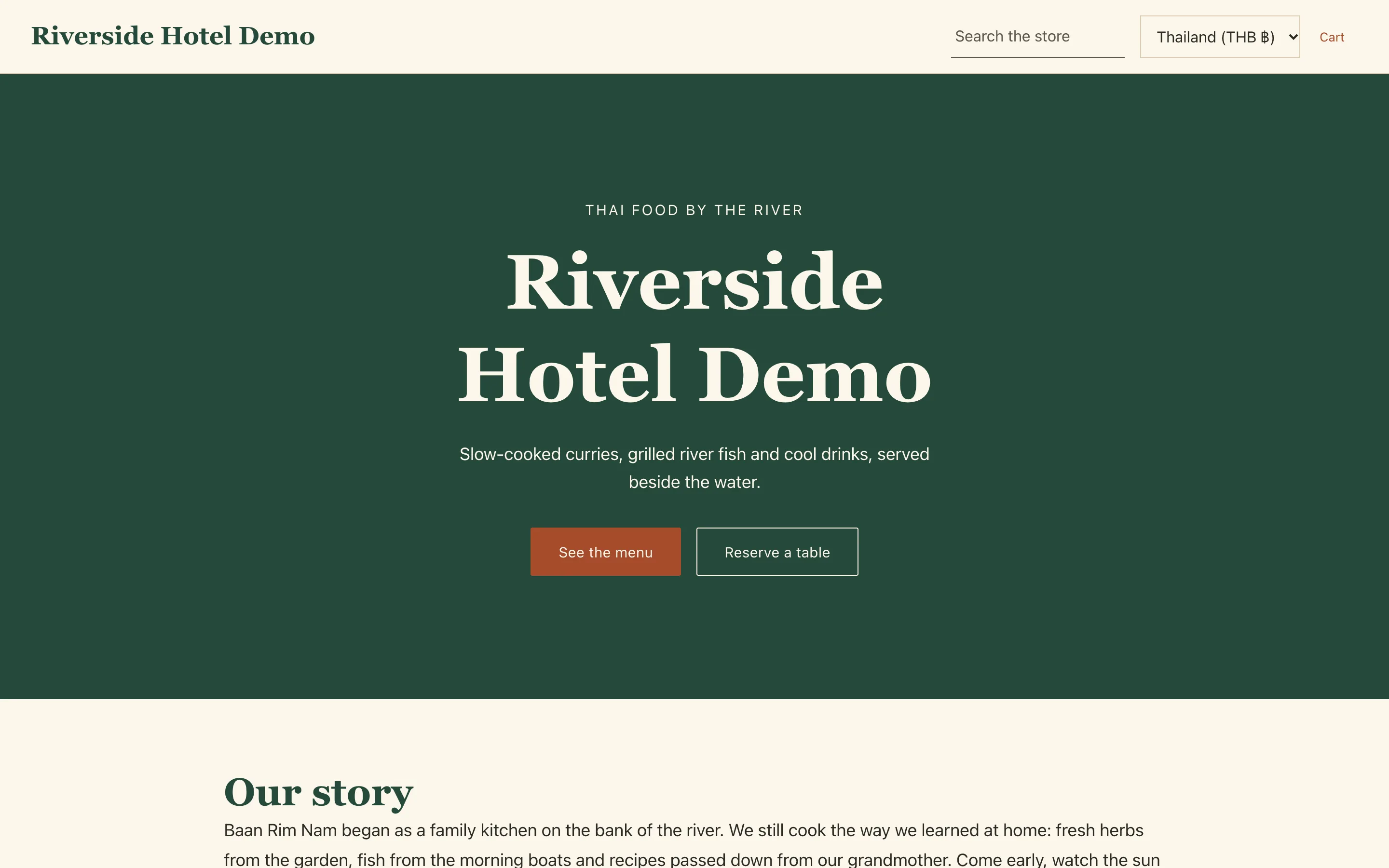
This page builds Baan Rim Nam, a theme for restaurants and cafes, and sends it to the Theme Store's review. It was built on Tanqory's test environment on 2026-11-15 with Claude Code and one prompt. A theme is the code of a store's website: the AI writes it, and the tanqory-partner command line checks it the same way Tanqory does before it reaches any store.
What a restaurant gets:
- a home page with a large welcome, See the menu and Reserve a table, the story, the opening hours and a map link;
- a menu that reads like a printed menu: the store's products grouped by collection (Starters, Mains, Desserts, Drinks), each with a line and its price, and each dish still on its own page for takeaway orders;
- a table request page, made from the store's contact form;
- calm colours and serif headings that the merchant can change in the theme settings.
- You and your AI → tanqory-partner theme init: the starter, which passes every check
- You and your AI The AI changes src/, templates/, regions/ and locales/
- You and your AI → tanqory-partner theme check: build and the 8 checks that run on your computer If not: fix each line, check again
- tanqory-partner → Tanqory sandbox theme push --store: a new version
- Tanqory sandbox Builds it twice, then accessibility, speed, network, previews: 15 checks If not: each failed line names the file and the rule
- Tanqory sandbox → Development store Installs it as a draft; you may publish it on that store
- You and your AI → Tanqory sandbox Listing, then Submit for review on the version
Before you start
- A partner organization and a development store: Create a partner account, Create a development store. Submitting needs the Owner or Admin role.
- Node.js 20.11 or later, and Claude Code (or another coding AI).
- The command line, signed in: Connect your AI tool, the tanqory-partner command line.
1. Start from the starter
tanqory-partner theme init baan-rim-nam --author "Your Name"
cd baan-rim-nam
npm install
tanqory-partner theme check
The check ends with nine passed lines and All checks that run here passed. It also lists the seven lines that run only in Tanqory's sandbox. Start every change from a passing check, so you always know what broke it.
2. Ask the AI to design it
Open Claude Code in the theme folder and send this prompt:
This folder is a Tanqory partner theme made with `tanqory-partner theme init`. Turn it into a theme for restaurants, called "Baan Rim Nam" (a riverside Thai restaurant is the example). Read https://partners.tanqory.com/docs/themes first, then read the code in src/ before you change anything.

What a restaurant needs from its website:
- Home: a large photo with the restaurant's name and two buttons, "See the menu" and "Reserve a table"; a short story; opening hours; the address with a link to a map.
- Menu: the dishes are the store's products, grouped by collection (Starters, Mains, Desserts, Drinks). Show each dish as a row with its name, a one-line description and the price, like a printed menu, not as a shop grid. Keep "Add to cart" on a dish's own page so takeaway orders still work.
- Reserve a table: use the contact page. Change its words to a reservation request (name, phone, date, time, number of guests in the message).
- Calm and warm: cream background, deep green and terracotta accents, a serif for headings. No blue anywhere. Use the theme settings for colours and fonts so a merchant can change them.

Rules:
- Change only src/, templates/, regions/ and locales/. Do not change package.json, the build files or the bundler configs.
- The merchant must be able to change everything a shopper sees in the theme editor: every word, image and link in a section is a setting whose default is the real words, and every list (opening hours, guest quotes, menu groups) is blocks. Interface words such as button and form labels go in locales/en.json and locales/th.json (write the Thai too).
- Keep the page accessible: real headings in order, enough contrast, alt text, labels on inputs.
- When you are done, run `tanqory-partner theme check` and fix every line that fails, until it says all checks passed.
It read the partner guide and the starter, wrote the theme and ran the check itself, in about four minutes. It told us what it could not do: the contact form's fields are fixed (name, email, phone, message), so it put the reservation details in the message, and it used system fonts with a Thai fallback, because a theme may not load fonts from other addresses.
3. Upload it and run every check
tanqory-partner theme stores
tanqory-partner theme push --name "Baan Rim Nam" --version 1.0.0 --notes "First version" --store <development store id> --waitVersion 1.0.0 uploaded: <version id> (CHECKS_PASSED_STATIC) of theme baan-rim-nam in organization <organization id>.
Installing on development store <store id>: BUILDING.
[3:56:44 PM] CHECKS_PASSED_STATIC; 4 of 14 passed; BUILDING
[3:58:08 PM] CHECKING; 9 of 14 passed; INSTALLED
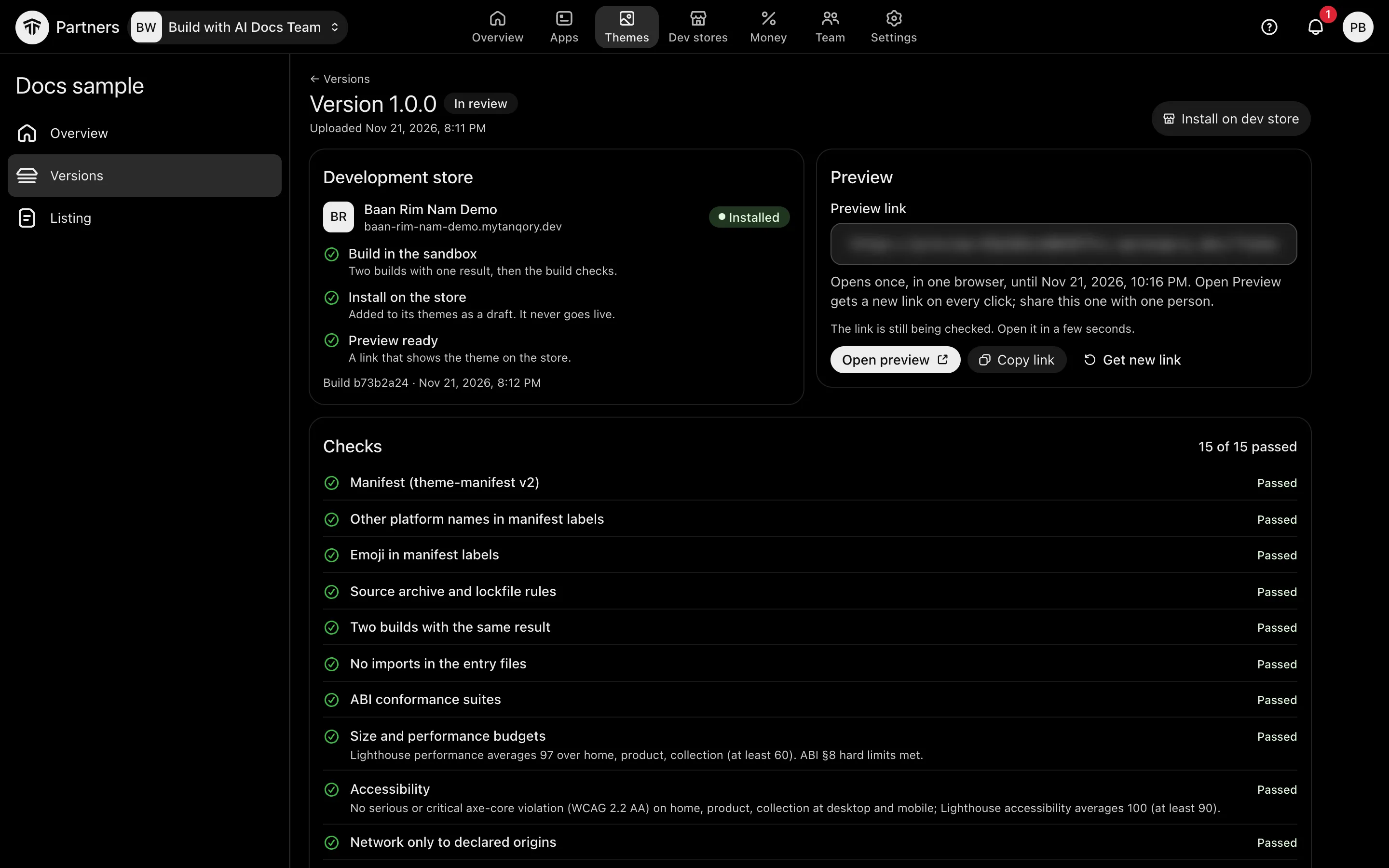
[3:59:03 PM] CHECKS_PASSED; 14 of 14 passed; INSTALLED
checks: 14 of 14 passed
passed budgets: Lighthouse performance averages 97.7 over home, product, collection (at least 60). ...
passed accessibility: No serious or critical axe-core violation (WCAG 2.2 AA) on home, product, collection at desktop and mobile; Lighthouse accessibility averages 100 (at least 90).
passed preview_renders: 27 route renders and 27 section previews on 3 sample stores, no render error; 18 screenshots saved.The whole run took about two and a half minutes. A failed line names the file, the rule and the evidence: give that line to the AI as it is and ask it to fix it, then push a new version (--version 1.0.1).
4. Look at it
The push ends with a preview link of the draft on your development store. It opens once, in the browser that opens it first. For another look, choose Open preview on the version in the partner dashboard (every click gets a new link) or run tanqory-partner theme status <version id>. The theme also shows in the store dashboard under Online Store, Themes, as a developer draft: its menu's Publish puts it live on that development store, which is how the demo store of a listing's preset shows the theme.
Change it in the theme editor
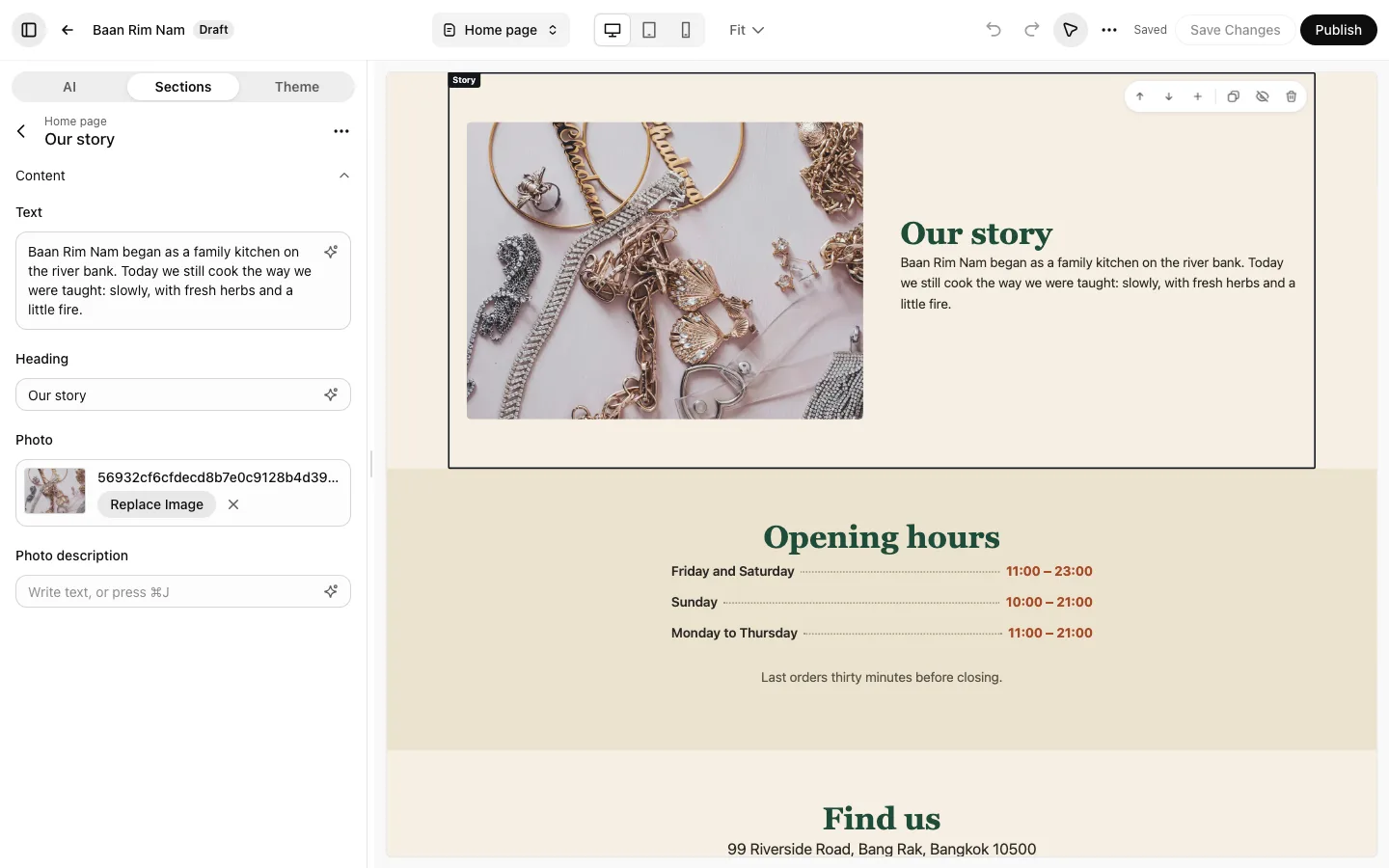
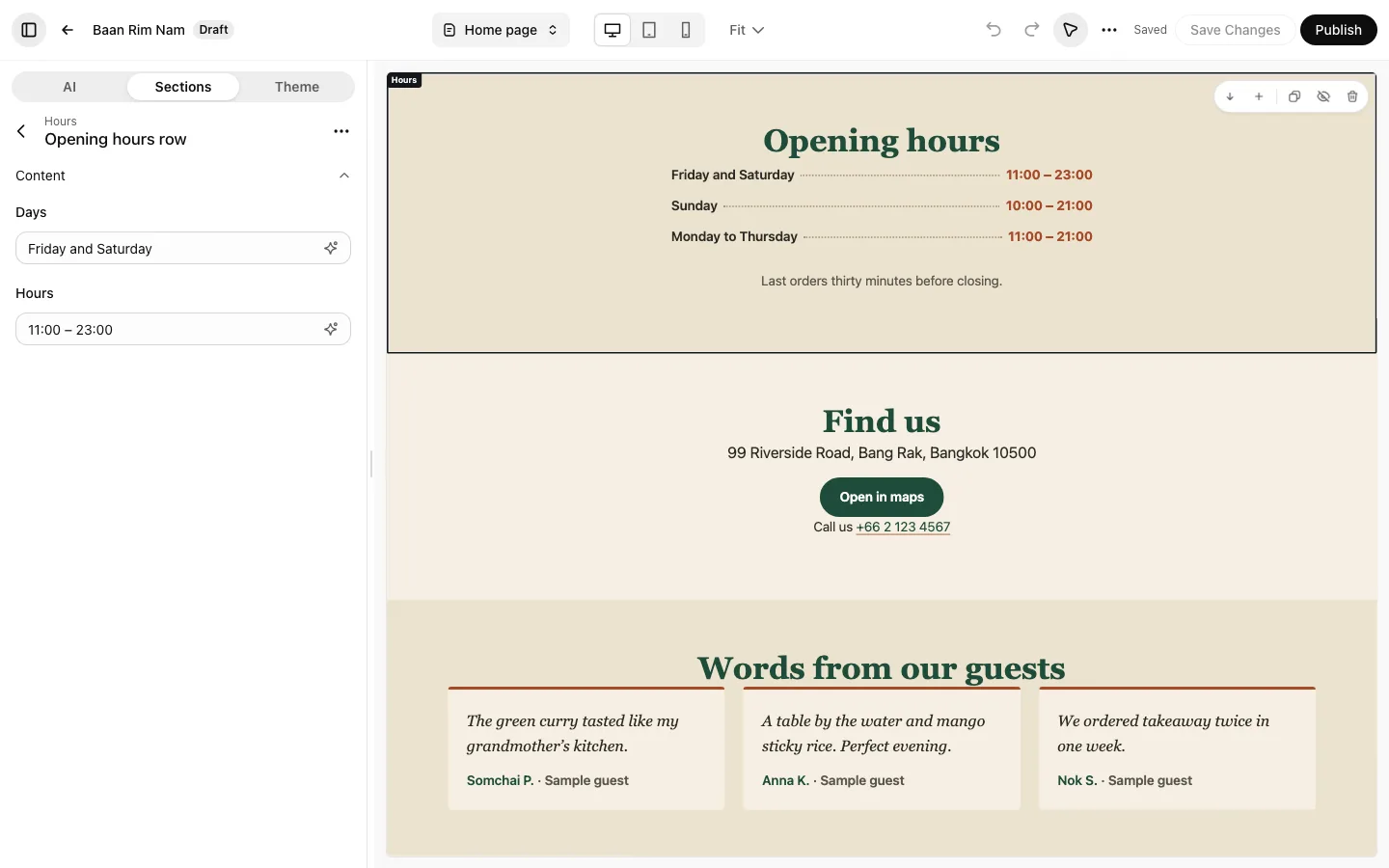
Open the draft in the store dashboard: Online Store, Themes, then Edit theme. Everything a guest sees is a field or a block, and each field shows the words the page shows:
- Select a section (Welcome, Our story, Opening hours, Find us, Words from guests) to change its words, links and photo. A photo comes from the store's files.
- A list is blocks. Under Opening hours each row is a block: Add block adds a row, the arrows on the page move it, the bin removes it. Guest quotes and menu groups work the same way.
- Theme holds the colours. A change recolours every page.
- The menu lists the store's own dishes, so a new name or price in Products shows on the menu at once.
When the AI builds through the Tanqory connector, the push is refused at every place where a shopper would see something the merchant cannot change here, with the file, the line and the fix, so the AI corrects it before the theme is built. For a partner theme, checkEditability of @tanqory/theme-standard runs the same check on your folder.
5. Listing and Submit for review
- In the partner dashboard open Themes, Baan Rim Nam, Listing.
- Fill in Listing name, Description (at least 20 characters: who the theme is for and what makes it different) and up to 10 Features.
- Under Screenshots, select Upload image (PNG, JPEG or WebP, up to 5 MB).
- Select Add preset: a Preset name and, as Demo store, the development store with the version installed.
- Fill in Support email and Documentation (an https page about the theme). Leave Price empty for a free theme, or set USD 1.00 to 1000.00. Select Save listing.
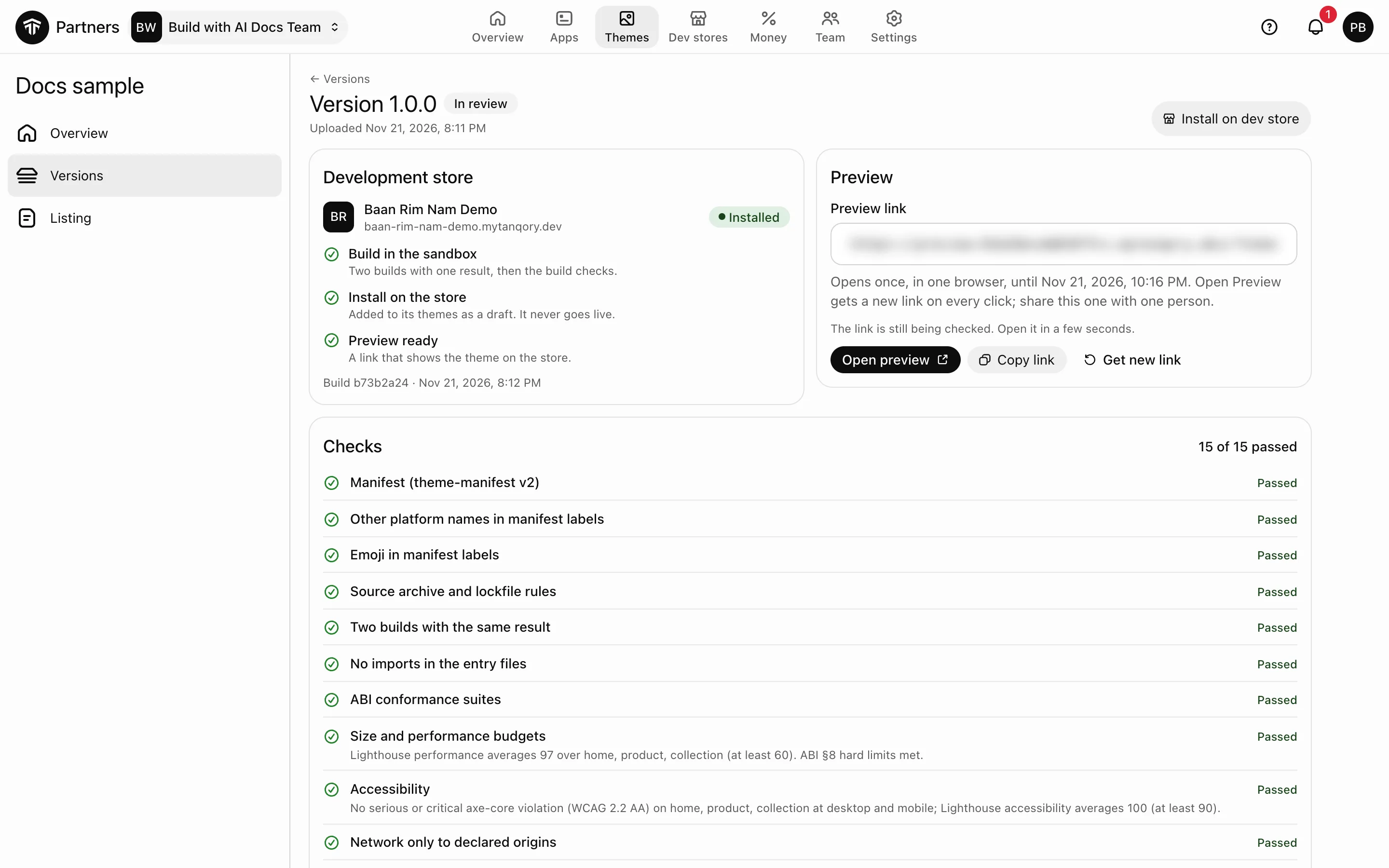
- Open Versions, the version, and select Submit for review; confirm Submit version 1.0.0 for review?. The button shows once every check passed (the version reads Ready to submit). A version that reads Checks not finished is not submitted: install it on a development store to run the sandbox checks.
The version now reads In review. Two Tanqory reviewers decide it: one checks the listing and the design, the other the security (what the theme may do, the addresses it talks to, the licences, the check report). One failed check rejects it with a note; two passes approve it. The partner guide says the first decision comes within 10 business days.
Building for your own store instead
A merchant who wants a new look only for their own store does not need the Theme Store. Fill the store first: ask the connector for a whole store build (dishes, collections, pages, blog, policies, menus in one approval), so the theme is designed and checked against real content. With the Tanqory connector and the write_themes scope, the AI uses Advanced mode: theme_scaffold gives it a plain starter (it changes nothing in the store), theme_code_push stages the theme's files in as many parts as it needs, theme_code_commit builds them as a new custom theme in the same sandbox after you approve, theme_build_status follows the build, and theme_preview_screenshot shows desktop and mobile images before you publish. A store has at most 5 custom themes, and 10 builds an hour. To carry on with such a theme in a different AI tool, see Continue a theme in another AI tool. The default mode, which restyles the store's current theme through its settings and sections, is in Theme tools for AI assistants.