
Connect your AI tool
Step-by-step connection of Claude, ChatGPT, Claude Code, Cursor and the tanqory-partner command line, and what Grok and Meta AI can and cannot do today.
Tanqory gives AI tools two doors. Pick the one that matches what you are building.
| Door | What it reaches | Signs in as | Use it for |
|---|---|---|---|
The Tanqory connector (MCP server) https://mcp.tanqory.com | One store you choose, within the access you approve | You, as a member of that store | Building and filling your own store: themes, pages, products |
The tanqory-partner command line | Your partner organization: themes, versions, development stores | You, as a partner | Building a theme for the Theme Store |
An app is different again: the AI writes its code on your computer, and the app gets its own access to each store when a merchant installs it. See Build an app: Room Booking.
Which tools work today
| Tool | How it connects | Tested by Tanqory |
|---|---|---|
| Claude (claude.ai, Claude Desktop) | Custom connector | Yes, 2026-11-14 |
| ChatGPT | Connector in developer mode | Yes, 2026-11-14 |
| Claude Code | claude mcp add | Yes, 2026-11-15, the steps below |
| Cursor | mcp.json | Not yet tested by Tanqory |
| Grok | Custom connector on paid plans | Not yet tested by Tanqory |
| Meta AI | No custom connectors | Cannot connect |
tanqory-partner command line | Sign-in with a code | Yes, 2026-11-15, the steps below |
Claude (claude.ai)
- Open Settings, then Connectors, then Add custom connector.
- Name it Tanqory and enter
https://mcp.tanqory.com. Select Add. - Select Connect. A Tanqory page opens: sign in with your Tanqory account.
- On Connect Claude to Tanqory, read the access it asks for, choose one store under Choose a store, and select Allow access.
Claude now lists the Tanqory tools in a chat. On the Free plan Claude allows one custom connector. Anthropic describes the screens in Getting started with custom connectors using remote MCP.
The tanqory-theme Skill. A skill teaches Claude a way of working. The connector carries the same guidance itself: the theme_guide tool and the server's prompts give Claude Tanqory's theme rules, so a theme works without the skill. To add the skill to claude.ai as well:
- Download tanqory-theme-skill.zip (version
0.2.1+fc774455, 17 KiB). The same file under its version's name, for links that must not change silently: tanqory-theme-skill-0.2.1-fc774455.zip (only the newest version is kept). - Check the file before you upload it. Its SHA-256 is
fc774455f9106de193597709666857f684f7db05fbaf88ed05ba8a65b0348477: on a Mac or Linux runshasum -a 256 tanqory-theme-skill.zip, on Windowscertutil -hashfile tanqory-theme-skill.zip SHA256, and compare. The checksum is also at tanqory-theme-skill.zip.sha256, and the version, checksum and size at tanqory-theme-skill.json. - In claude.ai turn on code execution first (on Free, Pro and Max plans: Settings, Capabilities, Code execution and file creation). Then open Customize, Skills, select +, Create skill, Upload a skill, and choose the zip. Anthropic describes the screens in Use skills in Claude.
The zip holds one folder, tanqory-theme, with its SKILL.md: the same file the tanqory-theme skill command of @tanqory/theme-mcp copies into a project for Claude Code.
Already set up before 2026-11-15? Two steps.
- Reconnect the connector. A connection approved before 2026-11-14 lacks the access the newer tools need (products, pages, blog posts, store files, policies, menus); the assistant answers that you must reconnect. Disconnect Tanqory under Settings, Connectors, connect it again and approve the full list.
- Upload the Skill again. An earlier copy does not know the store build below. Delete it under Customize, Skills, then upload the current zip as in step 3 above.
Build a whole store in one approval
With the connector, the assistant can fill a store before it designs anything: complete products (prices, variants, stock, photos, published on the online store, up to 25 per approval), collections, About, Contact and FAQ pages, a blog with posts, the five store policies, and the header and footer menus. It shows the whole plan as one approval, then builds it.
We ran it on 2026-11-15 with Claude Code on an empty development store, "Baan Rim Nam Demo":
Use the tanqory tools. My store is Baan Rim Nam, a riverside Thai restaurant that also sells takeaway. It is empty. Build the whole store with sample content I will replace later:
- the menu as products: about 12 dishes and drinks with prices in THB, a one-line description and a photo each, in the collections Starters, Mains, Desserts and Drinks;
- About, Contact and FAQ pages (opening hours, address on the river, how takeaway works);
- a blog called Journal with two short posts;
- the five store policies;
- header and footer menus that link to these.
Show me the whole plan as one approval before you change anything.
It answered with one plan: 12 dishes and drinks with prices in THB, four collections, three pages, the Journal with two posts, five policies and both menus, all marked as sample content to replace. We answered approve; the build finished in under a minute with every part made, and the store's full menu showed all 12 items.
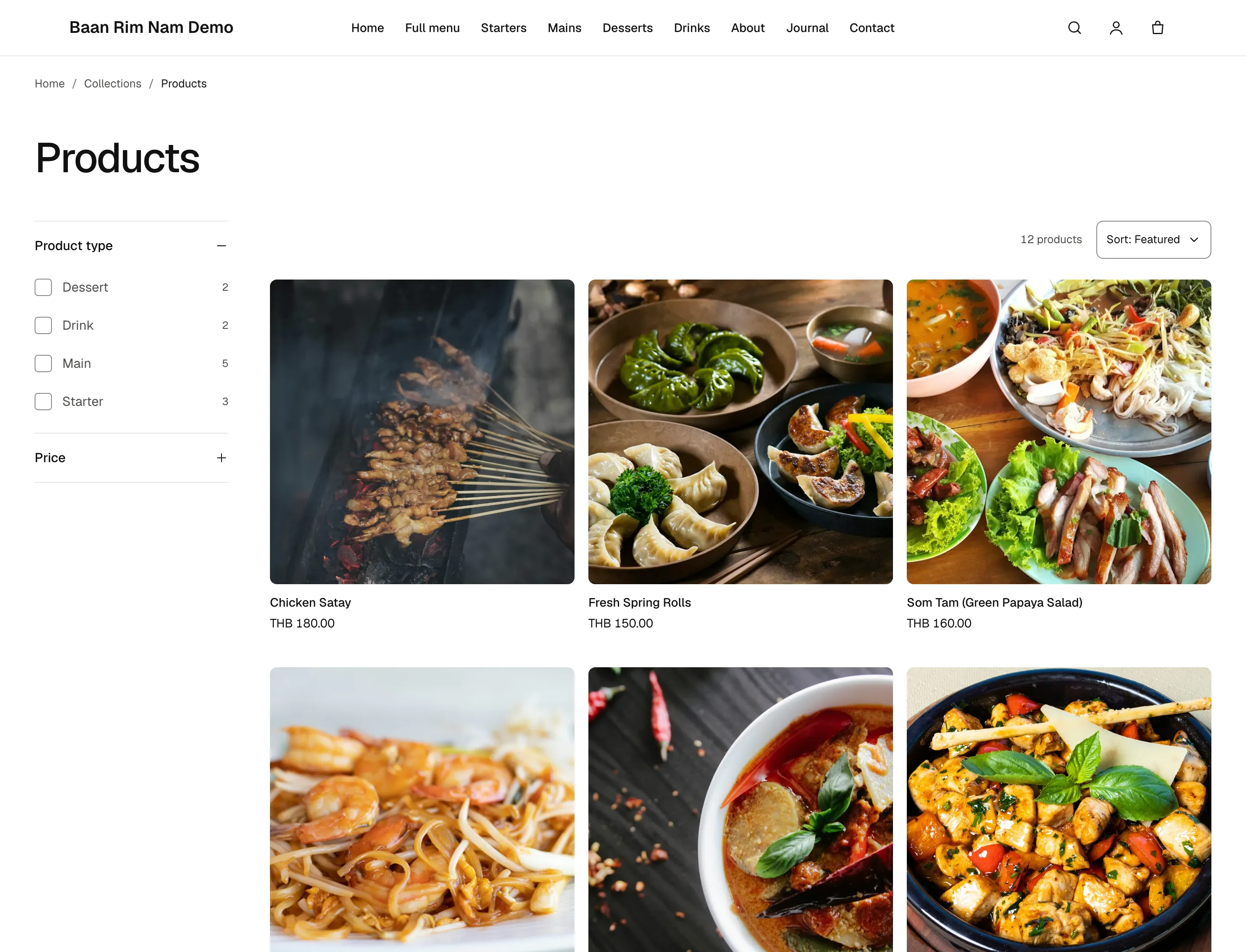
Then ask for the theme, and for screenshots of the home page, the menu, a dish, the blog and a page, so the assistant can check its own work.
The store's name, logo and password too. Ask for them in the same chat: the assistant renames the store, sets your logo (an image you give it, or one an image tool made), and when you say you are ready to launch, turns the store password off. That last card says plainly that the store becomes public; nothing changes until you approve it. A development store always keeps its password, and the assistant tells you why.
ChatGPT
In ChatGPT, turn on developer mode and add https://mcp.tanqory.com as a connector that signs in with OAuth. ChatGPT then opens the same Tanqory sign-in page: choose one store and select Allow access. OpenAI describes the screens, whose labels it changes from time to time, in Developer mode.
Claude Code
Claude Code is Anthropic's coding tool for the terminal. It can both use the Tanqory connector and write an app or a theme on your computer.
Add the server, from the folder you work in:
Shellclaude mcp add --transport http tanqory https://mcp.tanqory.comTextAdded HTTP MCP server tanqory with URL: https://mcp.tanqory.com to local configSign in. In a terminal window run:
Shellclaude mcp login tanqoryYour browser opens Connect Claude Code to Tanqory. Choose the store and select Allow access.
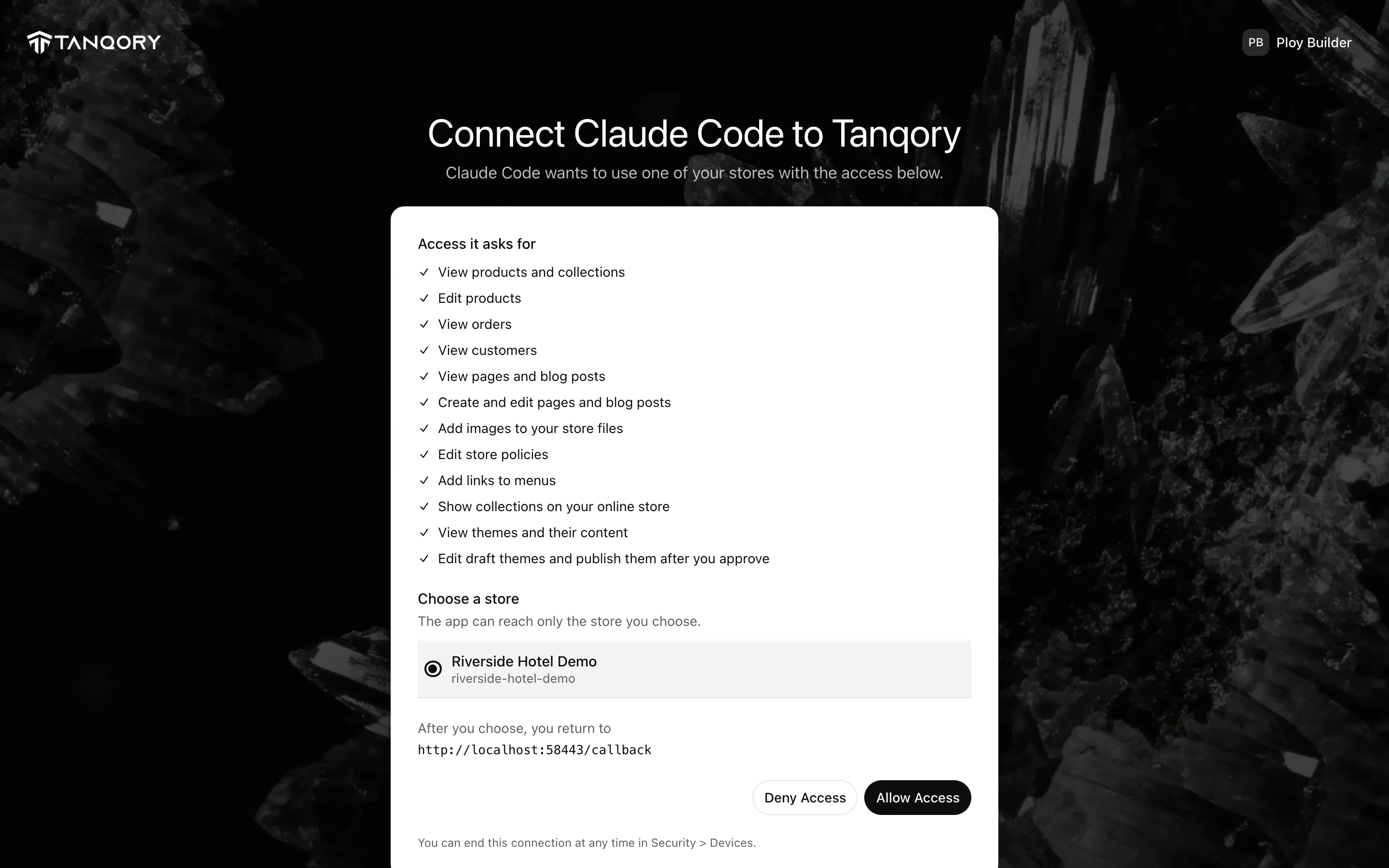
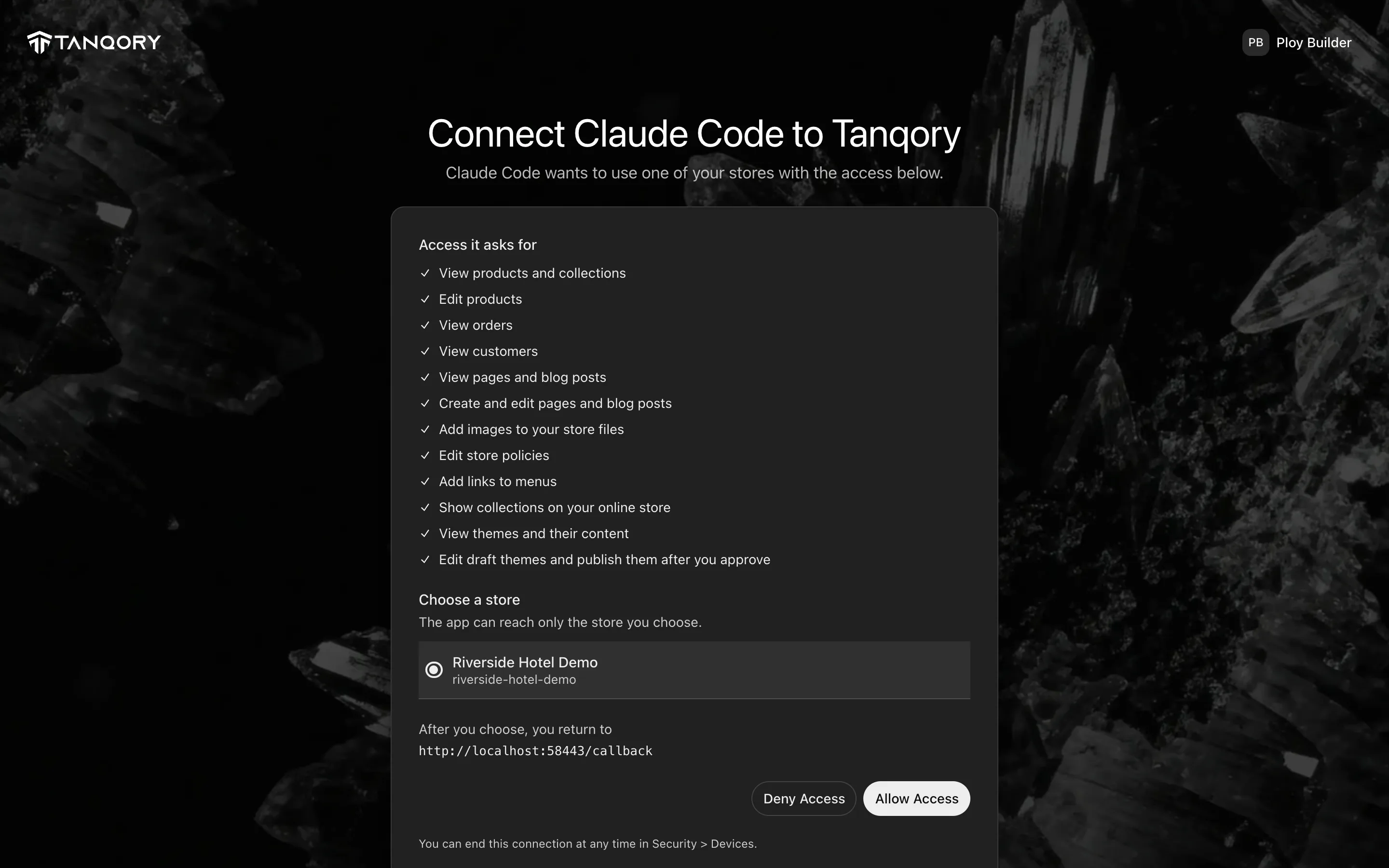
The terminal answers:
TextAuthenticated with "tanqory". Its tools are now available in Claude Code.If the browser cannot reach your computer (for example, you work over SSH), the terminal also says Or paste the redirect URL here: copy the address your browser ends on, which starts with
http://localhost, and paste it.Check the connection with
claude mcp list: thetanqoryline ends in Connected.
Inside Claude Code you can also type /mcp and choose Authenticate. Ask it, for example, "Use the tanqory tools: list my store's themes."
Cursor
Create .cursor/mcp.json in your project, or ~/.cursor/mcp.json for every project:
{
  "mcpServers": {
    "tanqory": { "url": "https://mcp.tanqory.com" }
  }
}
Cursor then asks you to sign in to tanqory; allow access to one store in the browser. Cursor's guide is Model Context Protocol.
Grok
On paid plans, grok.com lets you add a custom remote MCP connector: open grok.com/connectors, choose New Connector, then Custom, and enter https://mcp.tanqory.com. The sign-in is the same Tanqory page as above.
Meta AI
Meta AI does not let you add your own MCP connector, so it cannot connect to Tanqory today. You can still paste these docs into it and ask for code, but it cannot read your store or check its work against Tanqory.
The tanqory-partner command line
The command line builds, checks and uploads partner themes, and it is also an MCP server for AI tools. You need Node.js 20.11 or later.
Install it:
Shellnpm install -g @tanqory/partner-cli@next tanqory-partner --helpSign in:
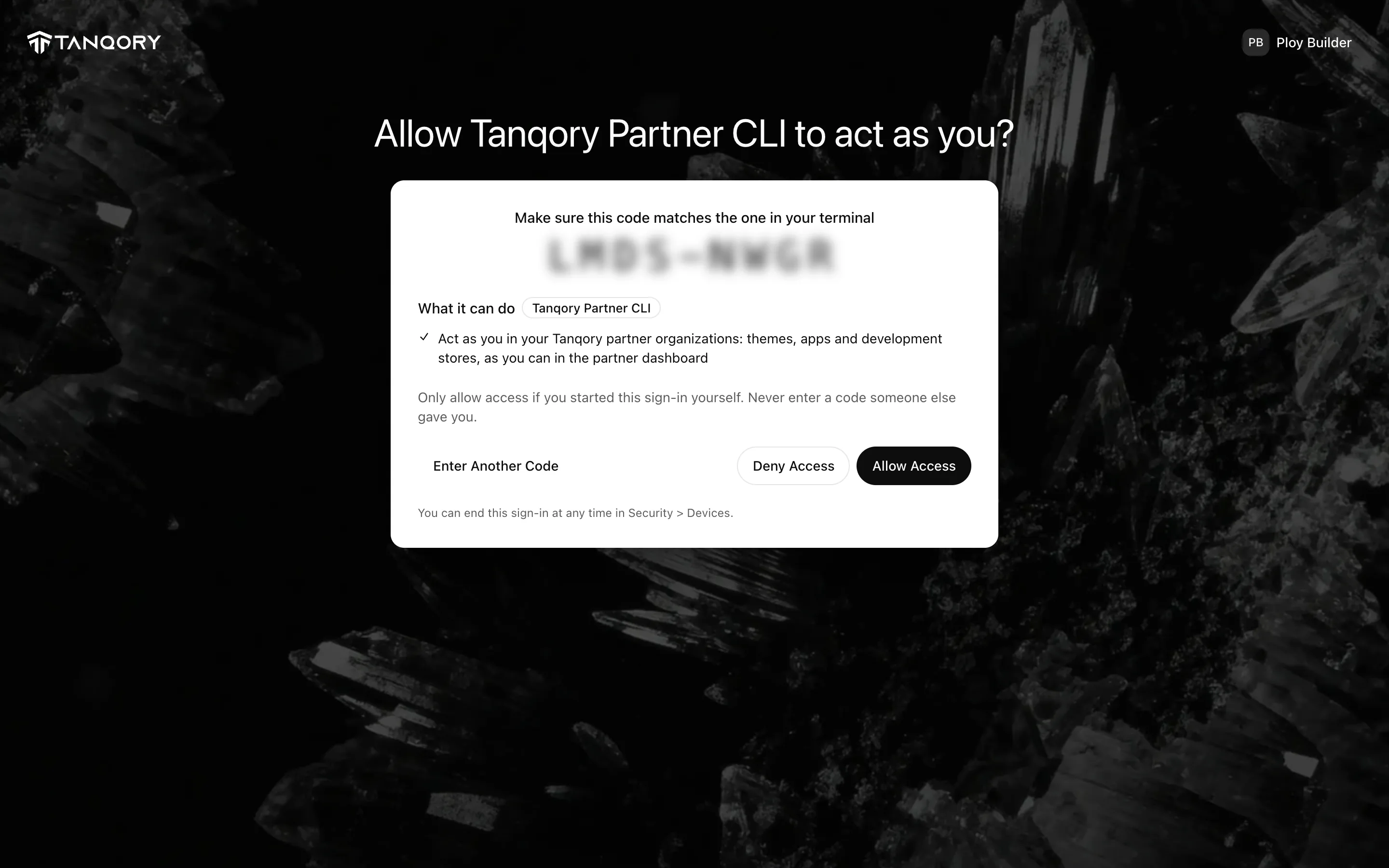
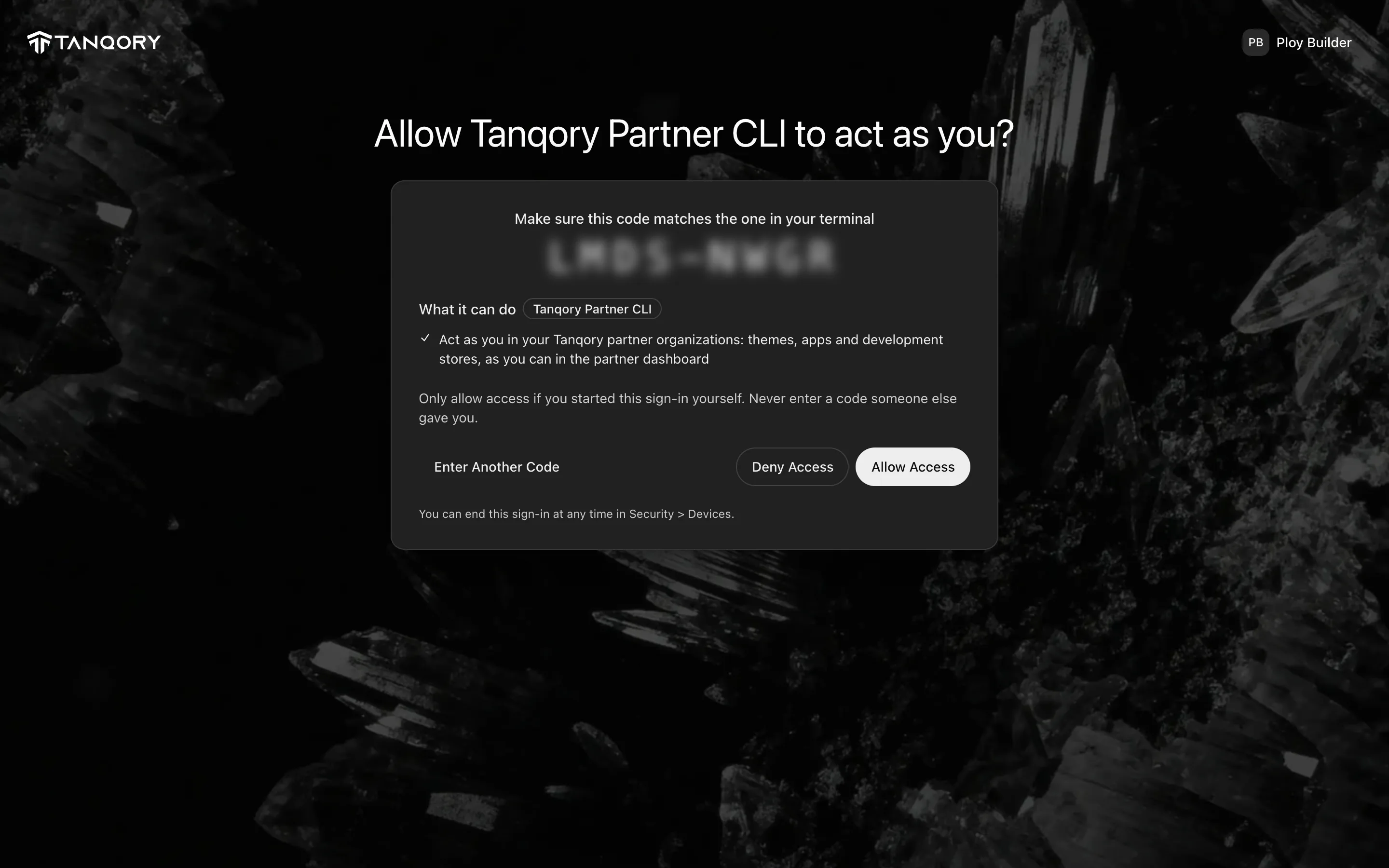
Shelltanqory-partner login --api https://api.tanqory.comTextTo sign in, open https://accounts.tanqory.com/account/oauth/device and enter the code XXXX-XXXX The code works for 10 minutes. Waiting for you to allow access...Open the page, enter the code and select Check code. Check that the code matches your terminal, then select Allow access.
 Text
Signed in to https://api.tanqory.com.Choose your organization:
Shelltanqory-partner orgs tanqory-partner orgs --use <organization id>
To let Claude Code run these commands for you as tools: claude mcp add tanqory-partner -- tanqory-partner mcp. The full command reference is the partner site's Get started with themes.